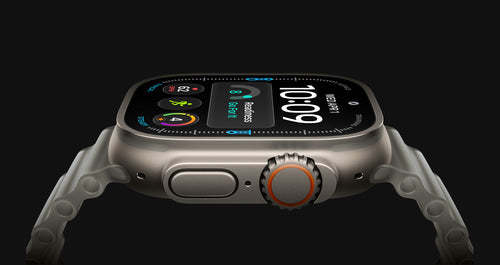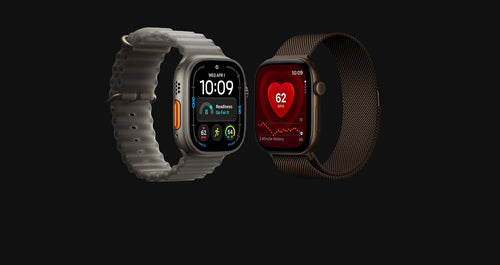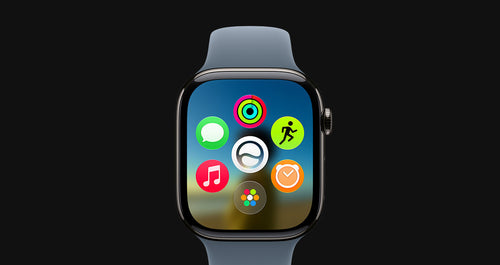






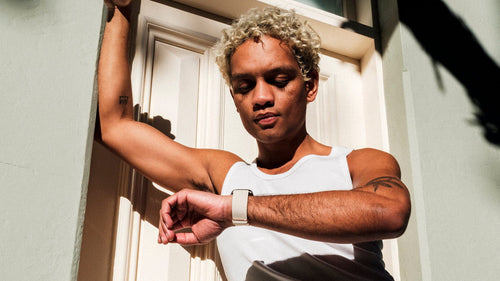
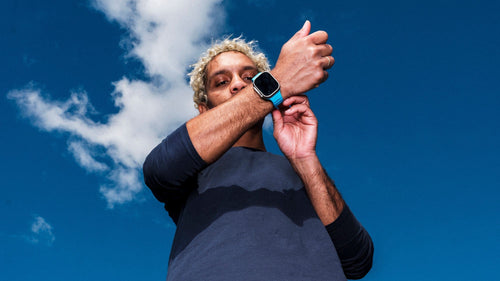
Welcome to the future of wearable tech. Whether you’re new to the Apple Watch world or upgrading to the Series 11, Ultra 3 or SE 3, the first few steps matter more than you think.
To help you hit the ground running, we’ve rounded up the best setup tips, personalisation tricks, and watchOS 26 features to get the most out of your wrist companion — right out of the box.
🛠️ Essential Setup Tips
🔄 Pair & Update
Start by pairing your Apple Watch to your iPhone using the Apple Watch app. Make sure you’re running the latest version of watchOS 26 for all the newest features and performance improvements.
Pro Tip: During setup, choose “Restore from Backup” if you’re upgrading from an older Watch — it’ll save you time.
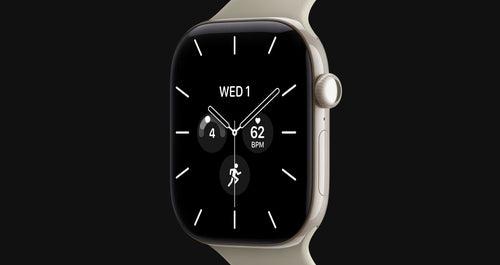
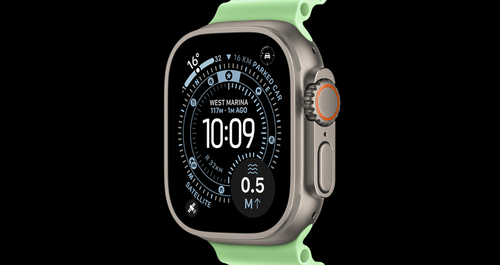
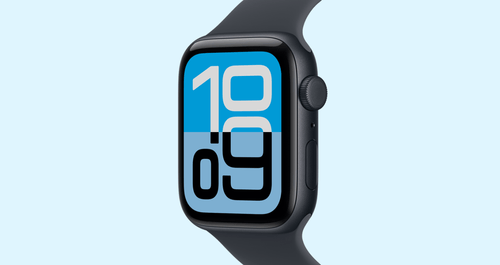
⌚ Customise Your Watch Face
Your Apple Watch face is your home screen — make it yours:
- Tap and hold the watch face to edit
- Add Complications (mini widgets) for things like weather, calendar, battery
- Try modular or infographic faces for more data at a glance
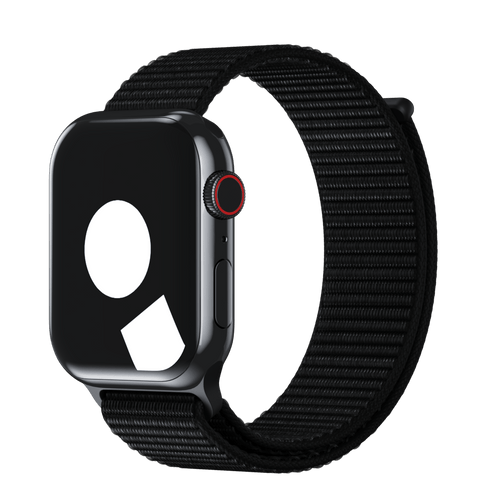
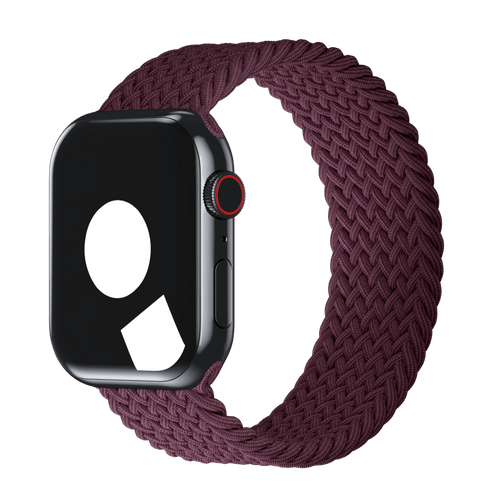
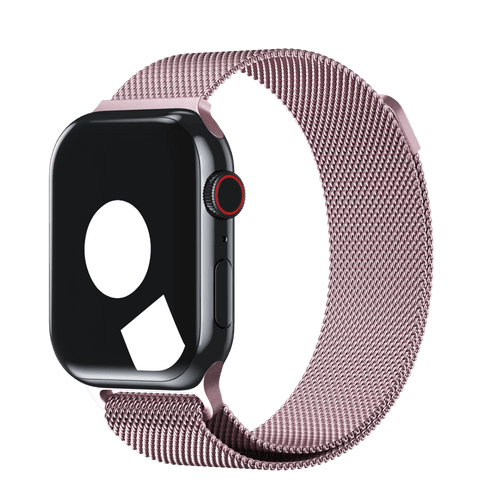
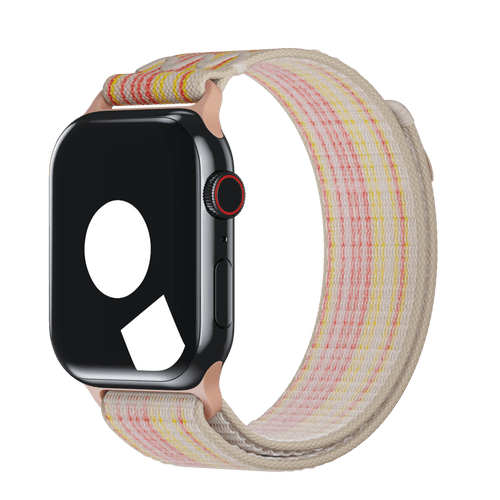
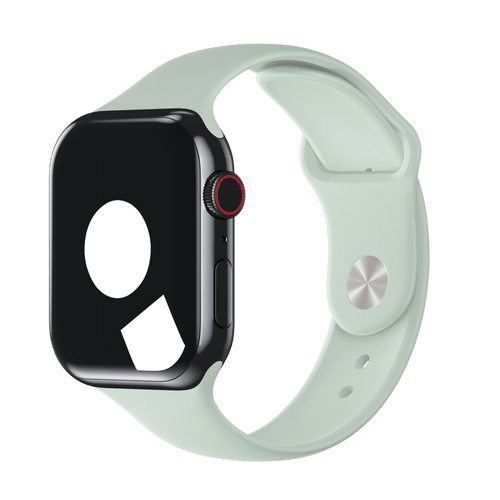
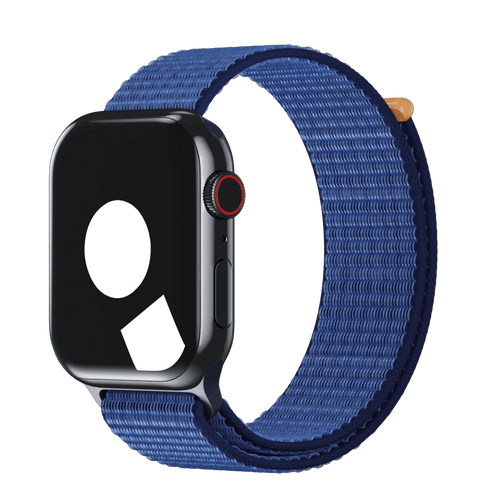
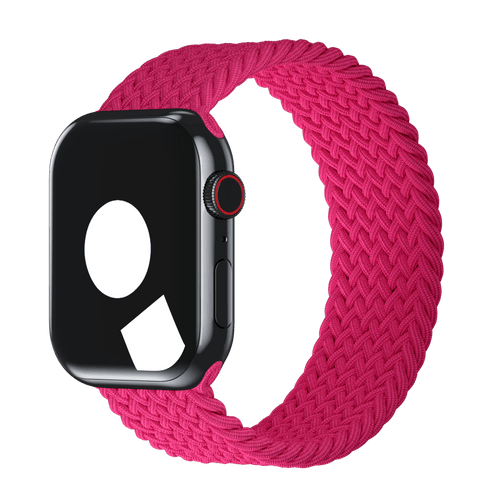
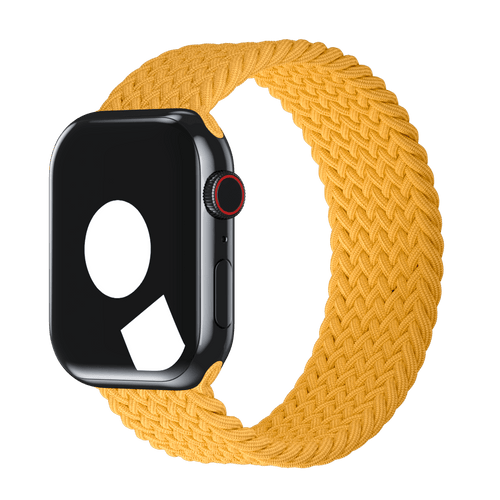
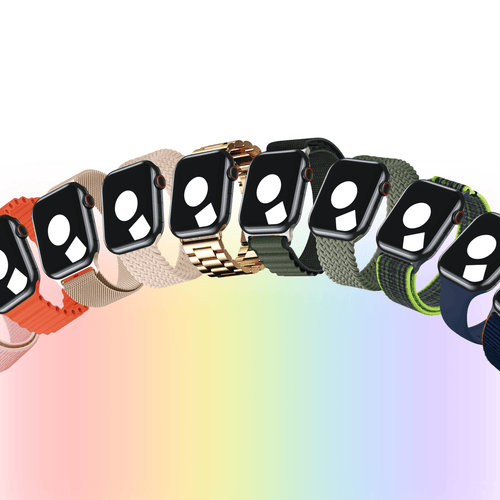
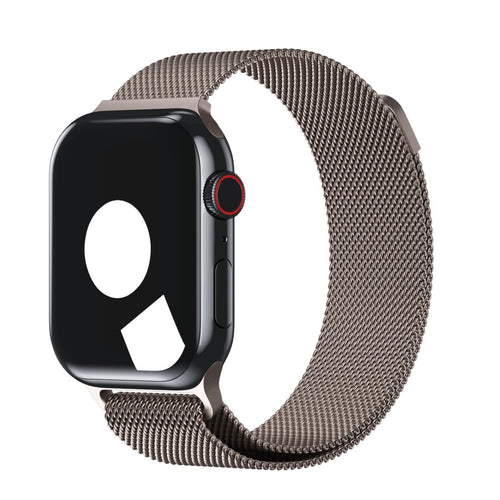
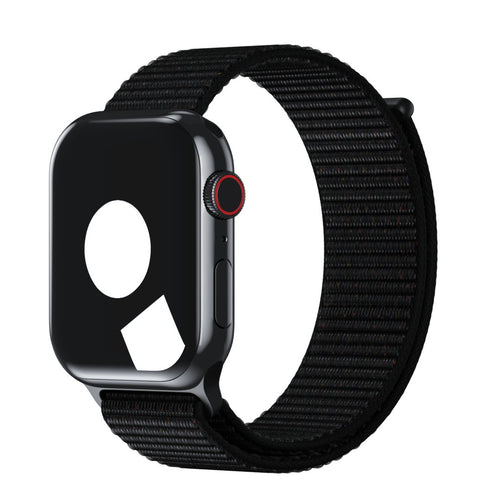
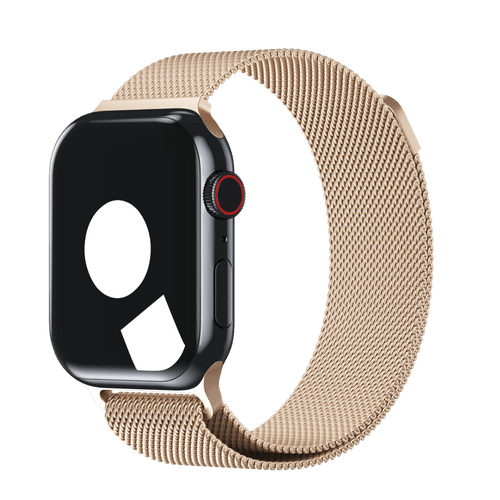
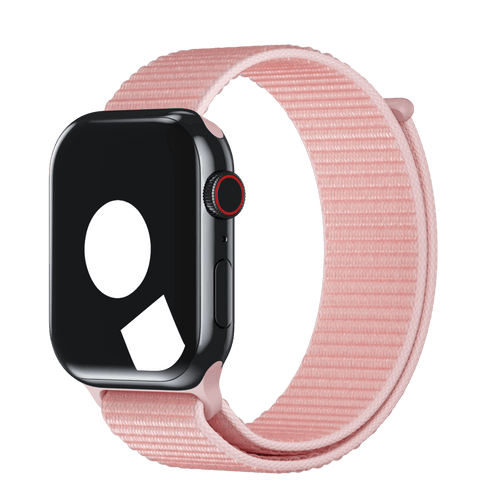
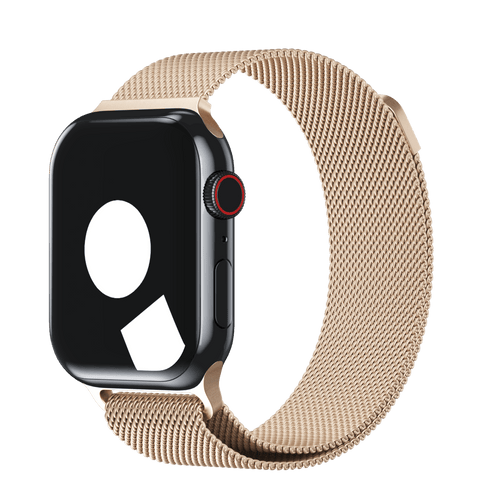
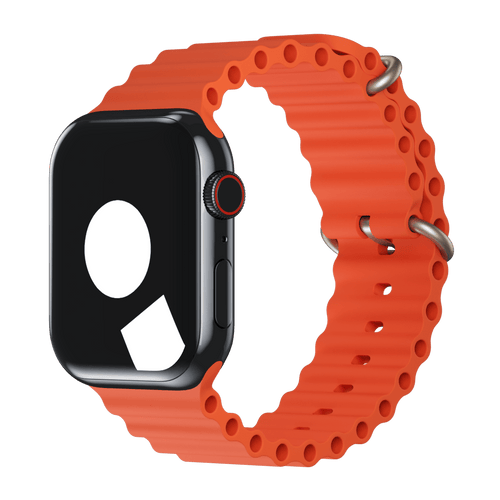
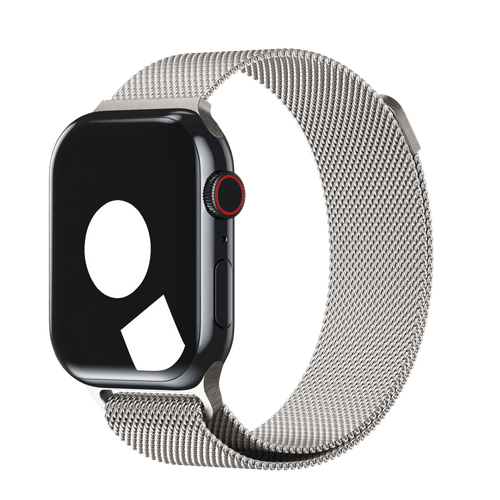
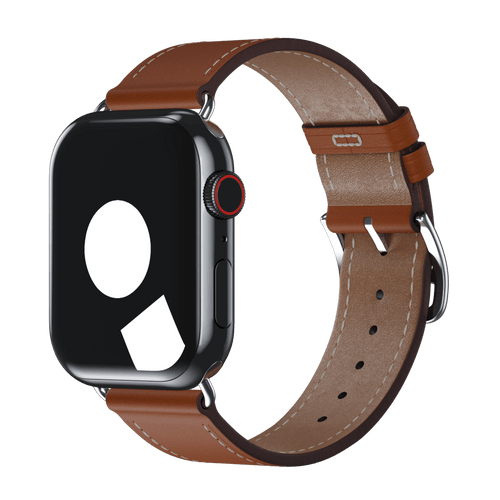
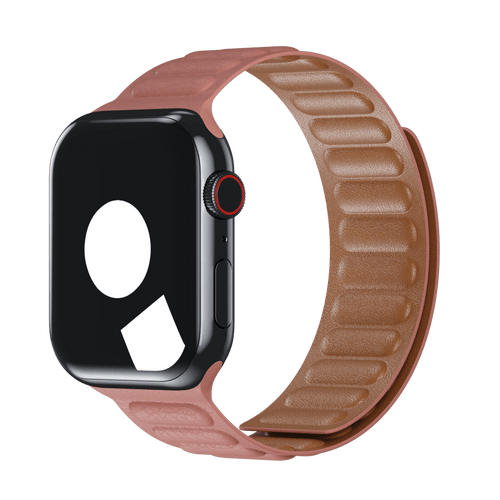
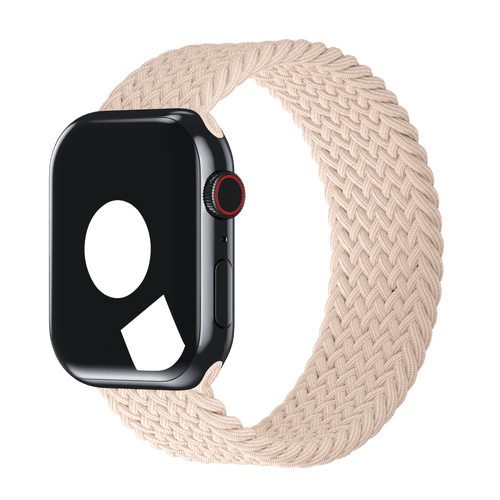
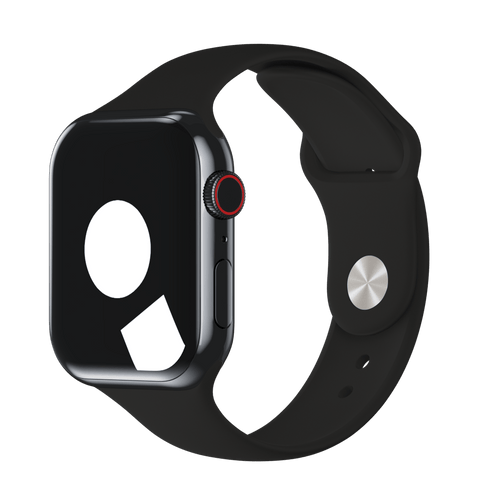
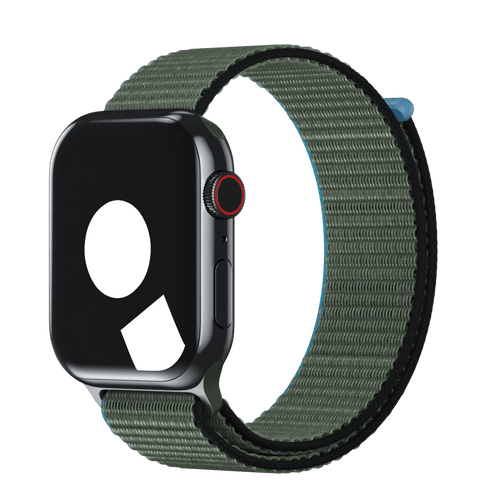
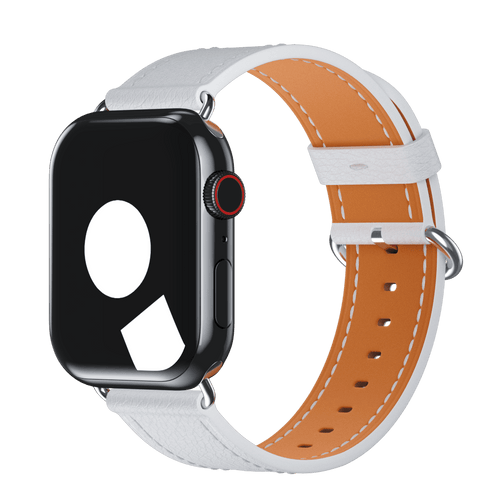
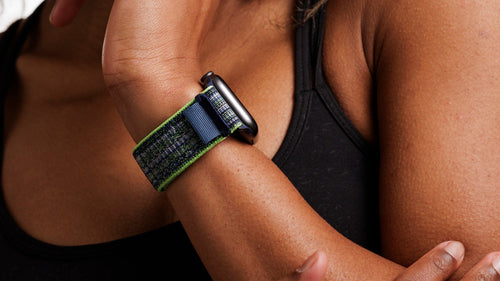
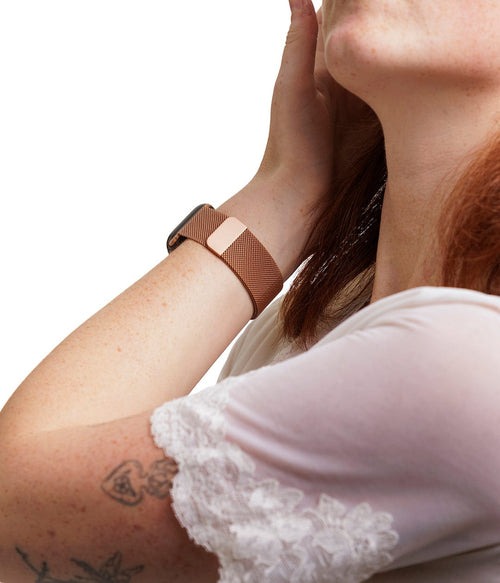
Want it to look even better? Match your band to your face. Browse Milanese Loop or Sport Loop for full effect.
⚙️ Hidden watchOS 26 Features
watchOS 26 introduces powerful new tools. Here’s what to enable:
- Wrist Flick Actions: Trigger shortcuts by flicking your wrist
- Suggested Smart Actions: Your Watch learns your habits and prompts you to take actions
- Liquid Glass UI: A cleaner, more intuitive interface that adapts dynamically
🔒 Privacy & Health Optimisations
Set up:
- Fall Detection (especially for Ultra 3 adventurers)
- Sleep Tracking
- Noise Monitoring
- Heart Rate Zones in the Workout app
You can find all of these under Settings → Health & Safety.
📦 Get it Ready for Real Life
- Enable Wallet & Apple Pay
- Set up Emergency SOS
- Customise Notifications (so you’re not buzzed every 2 seconds)
🎁 Bonus: Accessory Must-Haves
If you’re rocking a new Watch, don’t stop at setup. Complete the look and protect your tech:
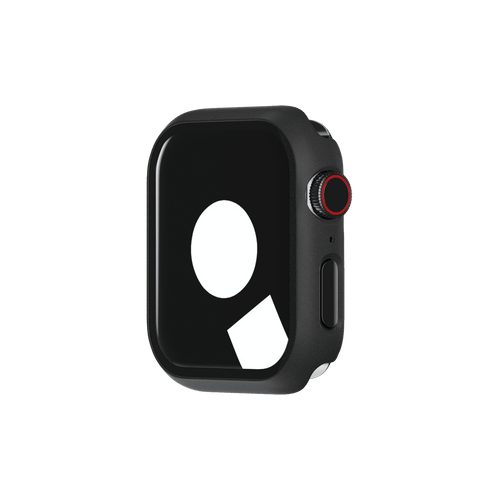
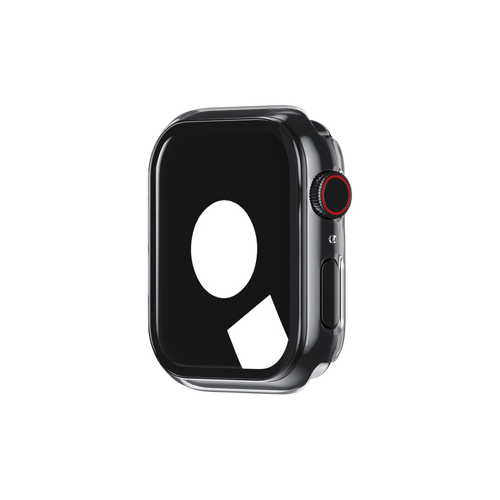
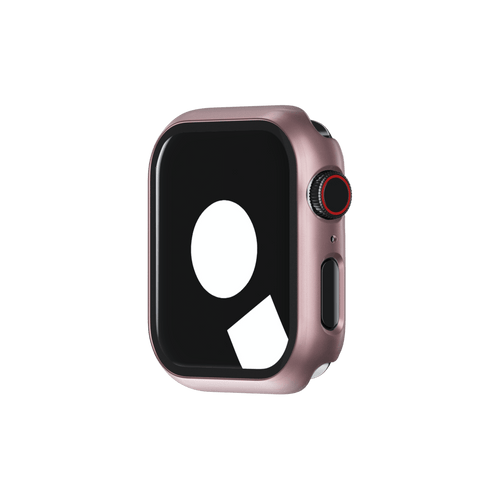
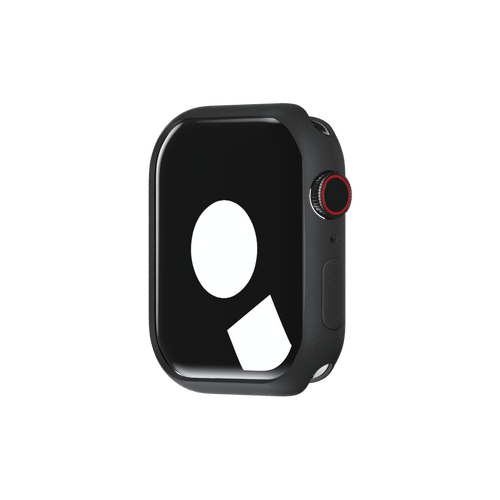
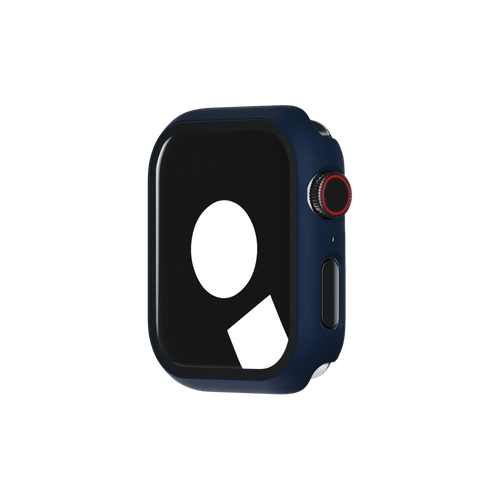
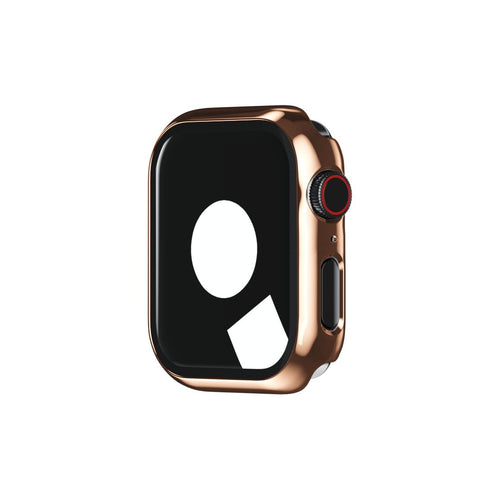
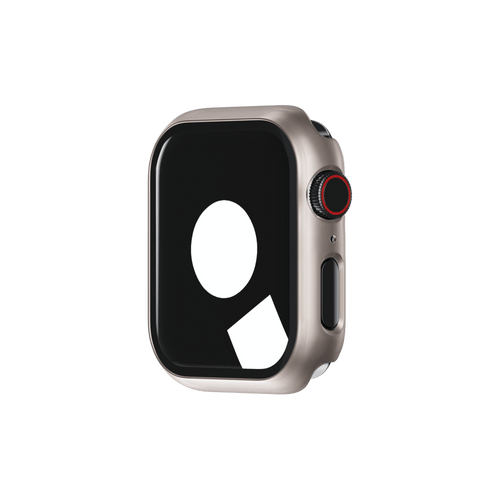
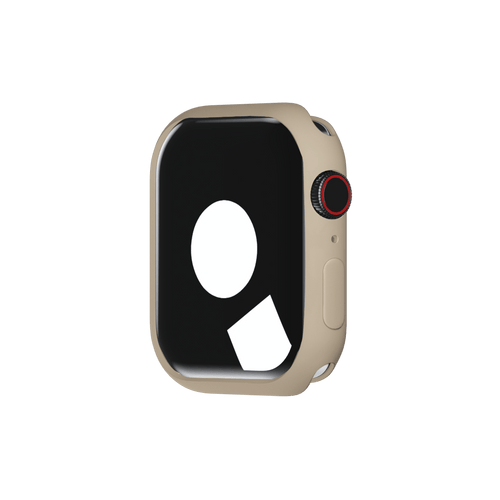
- Case Protector for all-round protection
- Tempered Glass Screen Protector for crystal-clear durability
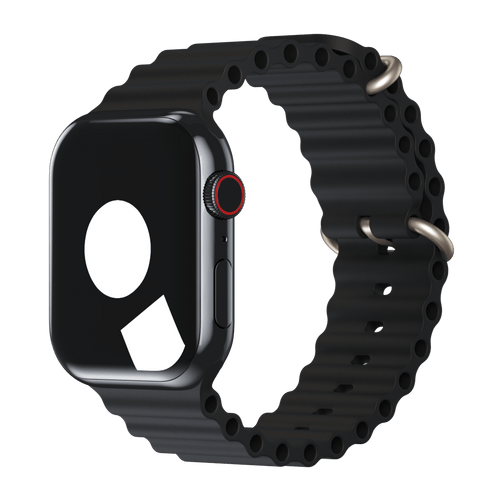
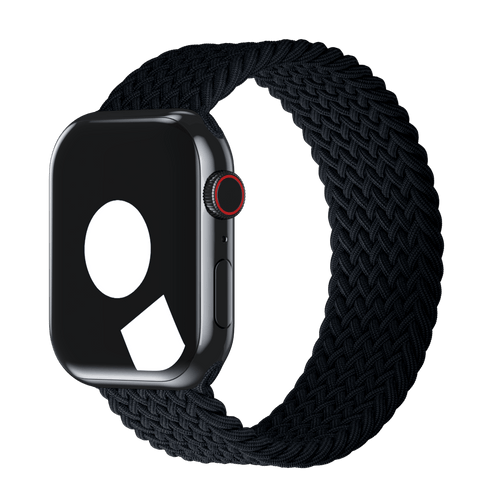
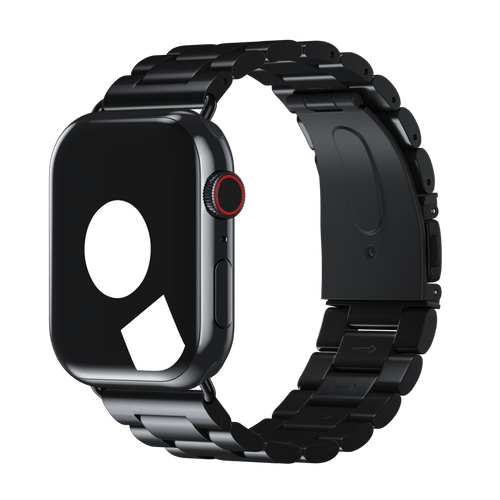
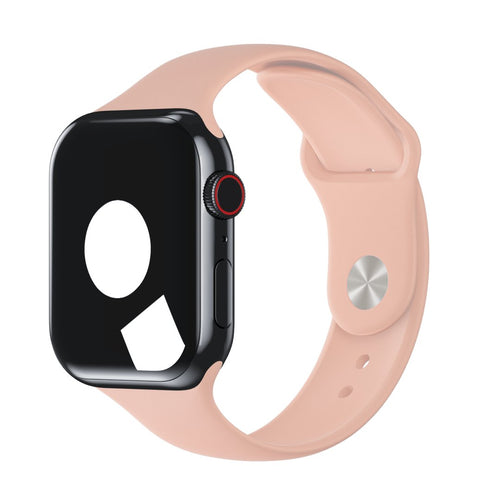
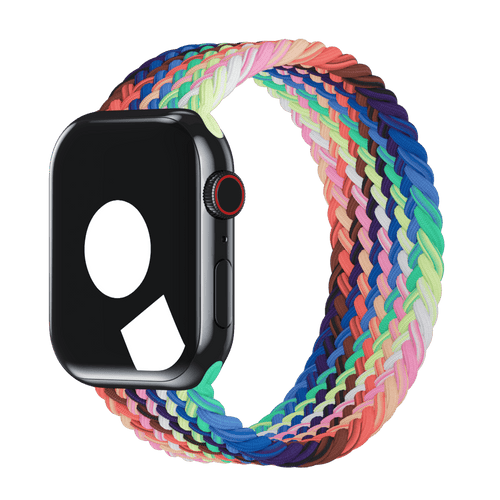
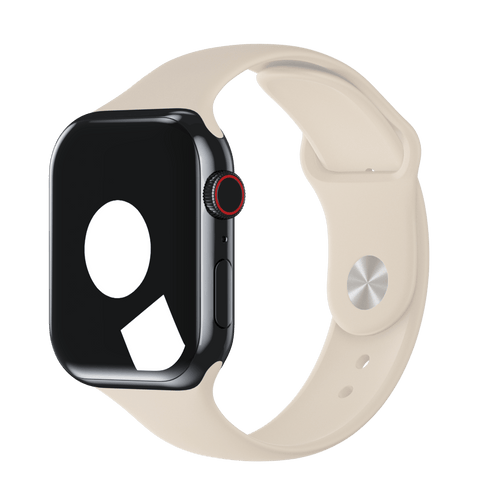
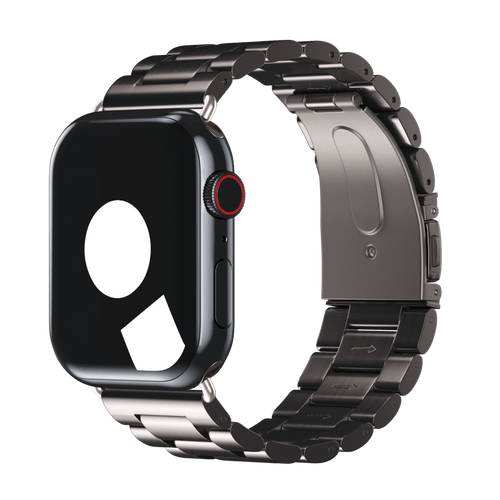
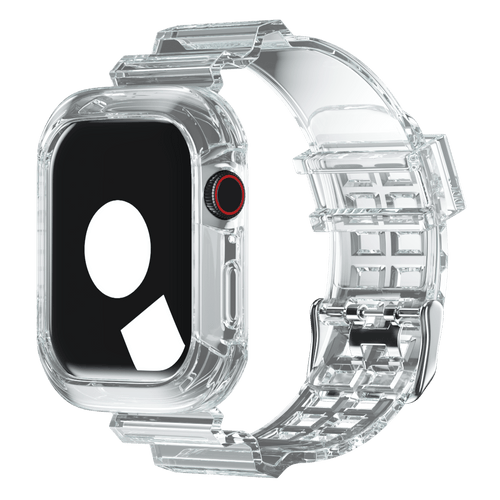
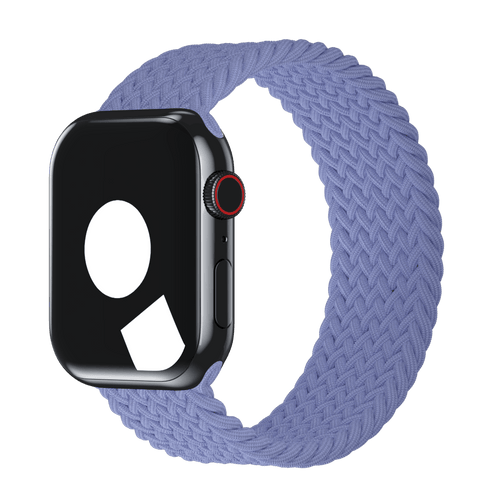
- The perfect band for Work, Gym and more
👋 Ready, Set, Go.
Your Apple Watch is more than a watch — it’s your trainer, assistant, communicator, and motivator. Take 10 minutes to set it up right, and you’ll be amazed what it can do.